Project Manager Operations Manual
Complete technical walkthrough and employee training guide
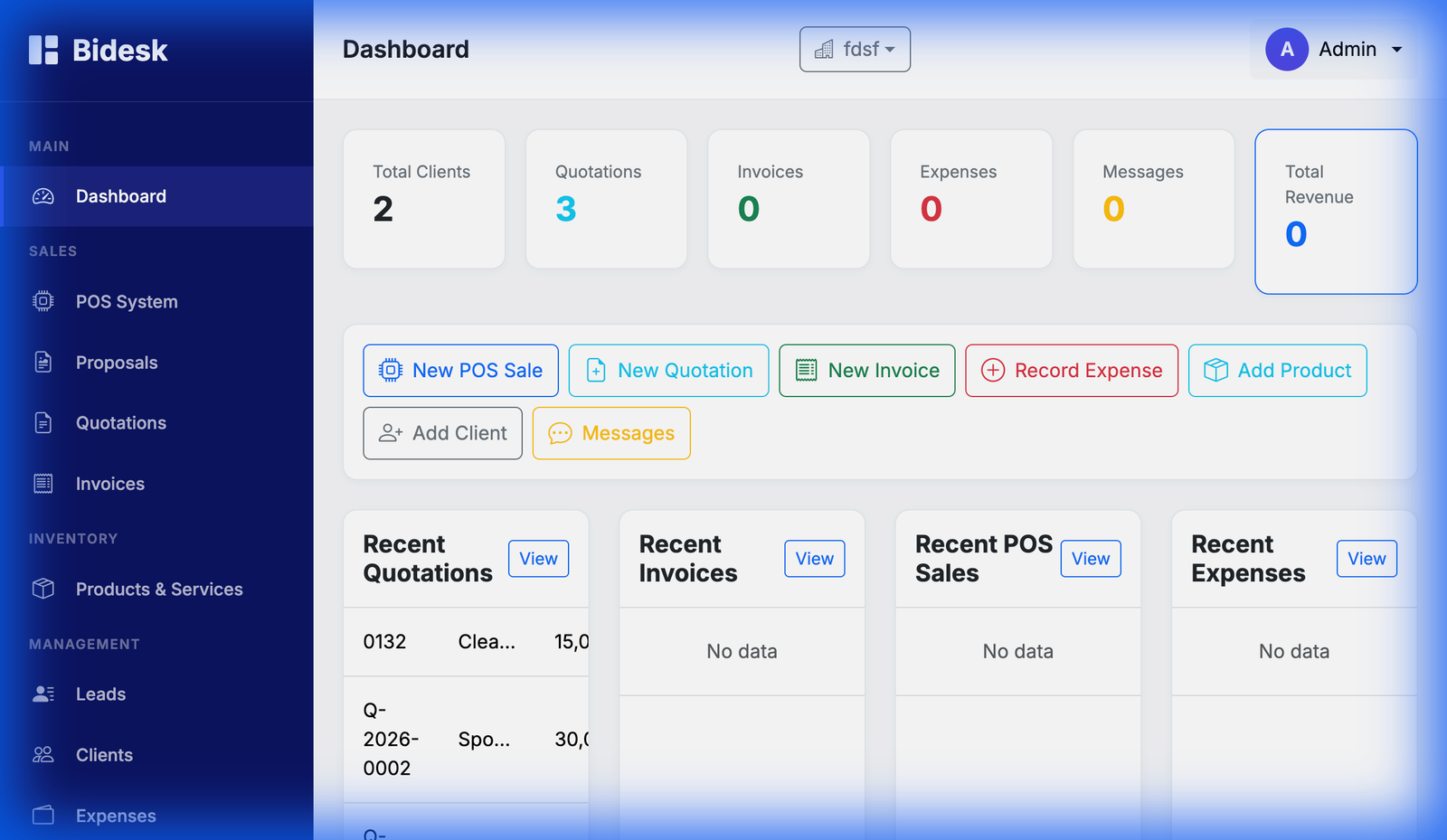
1. Central Control Dashboard
The primary interface for monitoring the entire operation. This view provides high-level metrics and immediate access to all functional modules.
2. Point of Sale (POS) System
Designed for fast retail transactions. This module integrates inventory and payment processing into a single, intuitive interface.
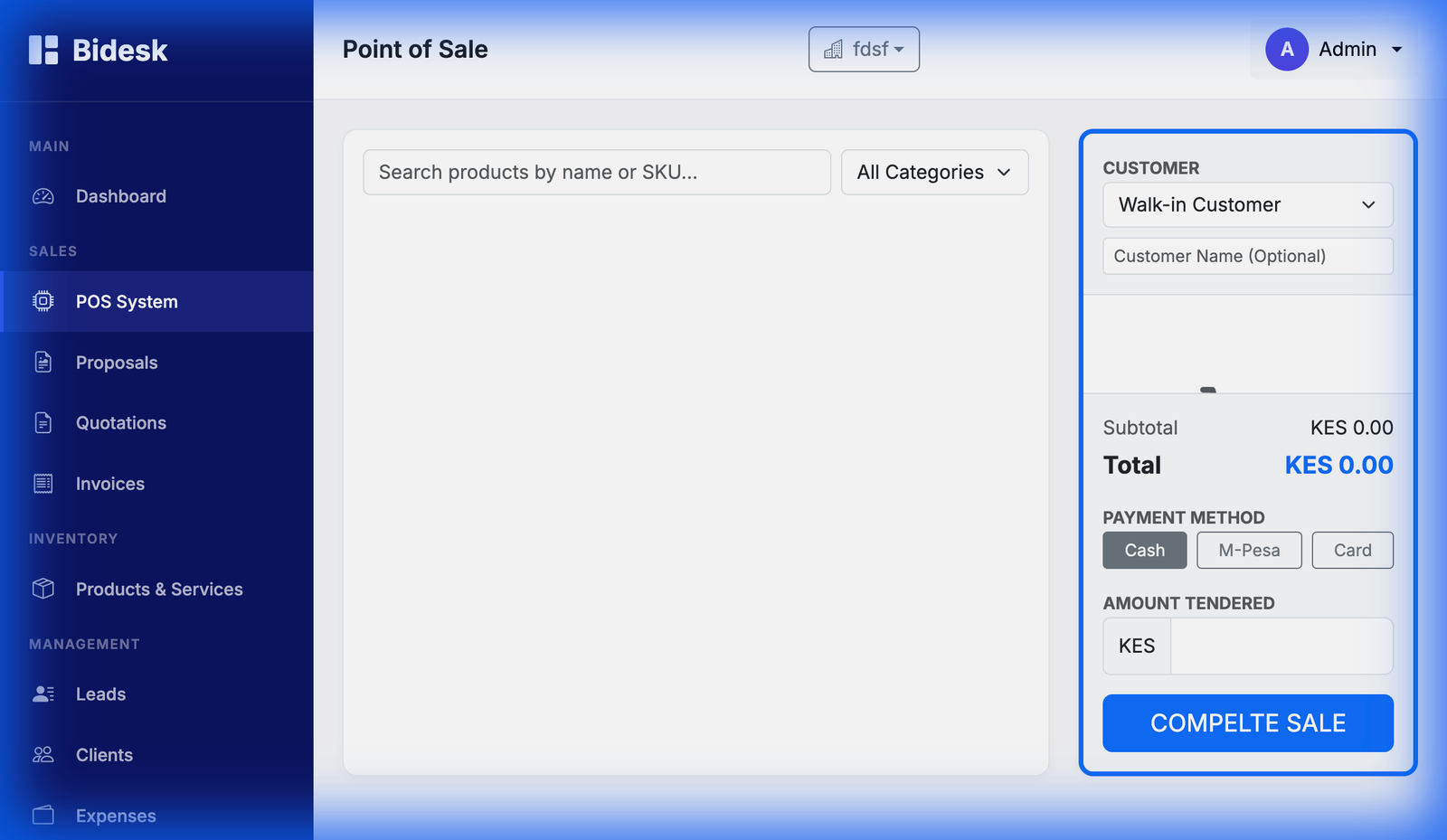
- Product Selection: Select items from the grid or search directly.
- Client Mapping: Assign the sale to a Walk-in or specific Client.
- Payment Type: Choose M-Pesa, Cash, or Card.
- Finalization: Process sale to update inventory levels automatically.
3. Quotation Architecture
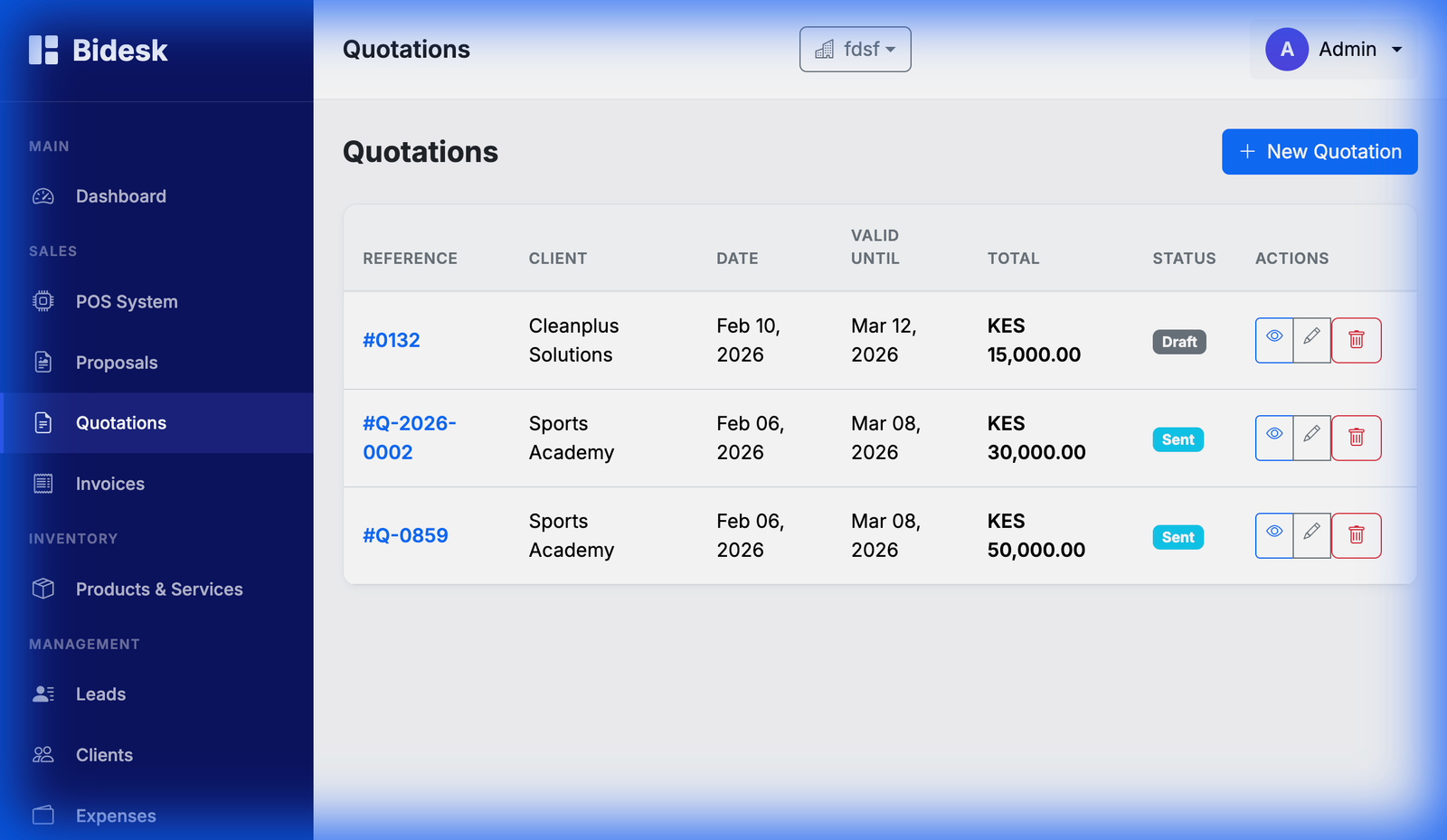
The core of professional project bidding. This module allows for granular itemization and terms management.
Creating a New Quotation
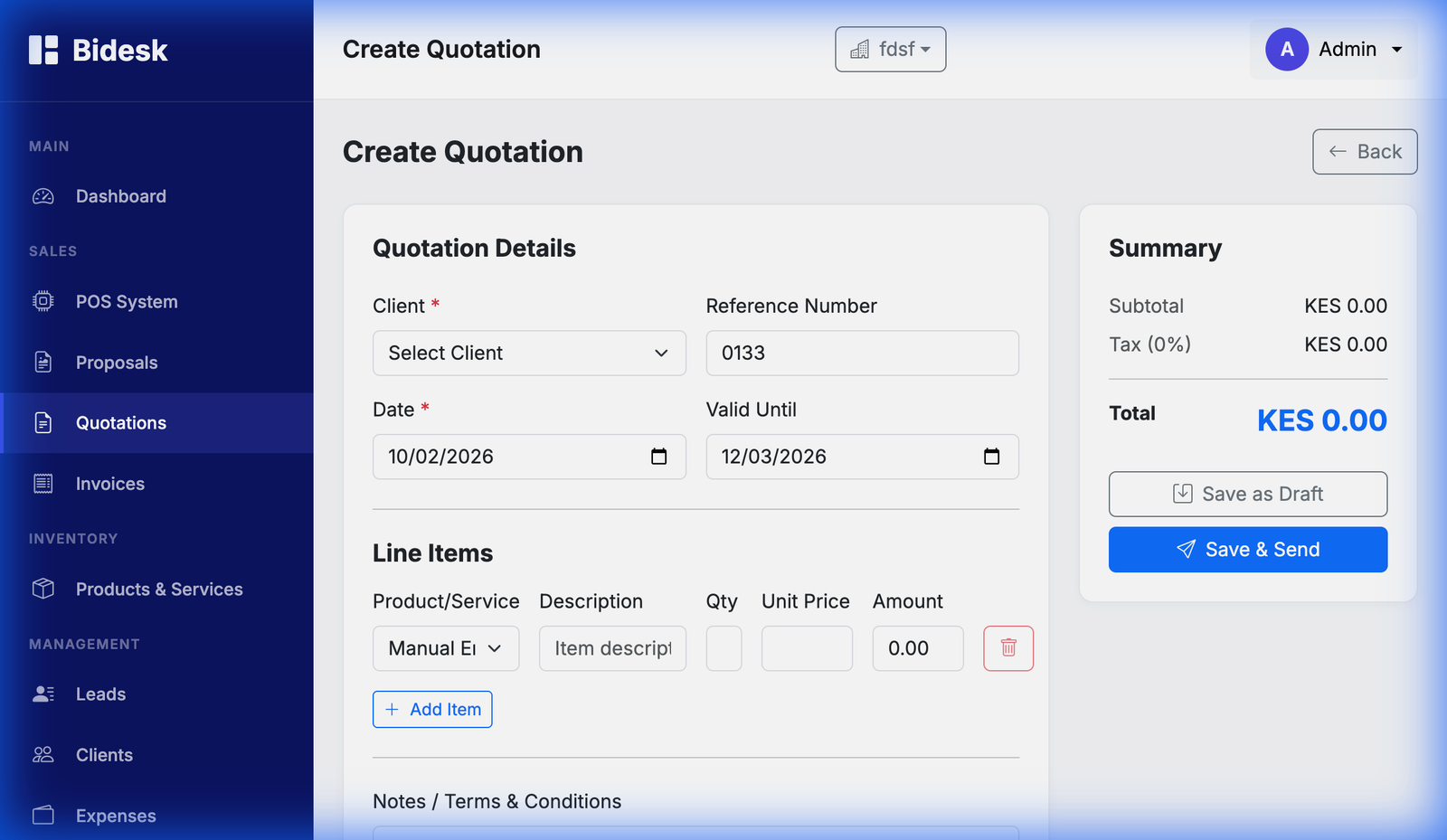
- Reference Check: System auto-generates numbers (e.g., #0132).
- Itemization: Use "Manual Entry" for custom services or "Product Search" for inventory items.
- Summary Sidebar: Review KES totals and tax calculations before saving.
- Status: Mark as 'Sent' to trigger the sales pipeline tracking.
4. Project & Proposal Design
Proposals are high-impact documents used to present detailed project scopes, options, and timelines to clients. This module is essential for complex services like website development.
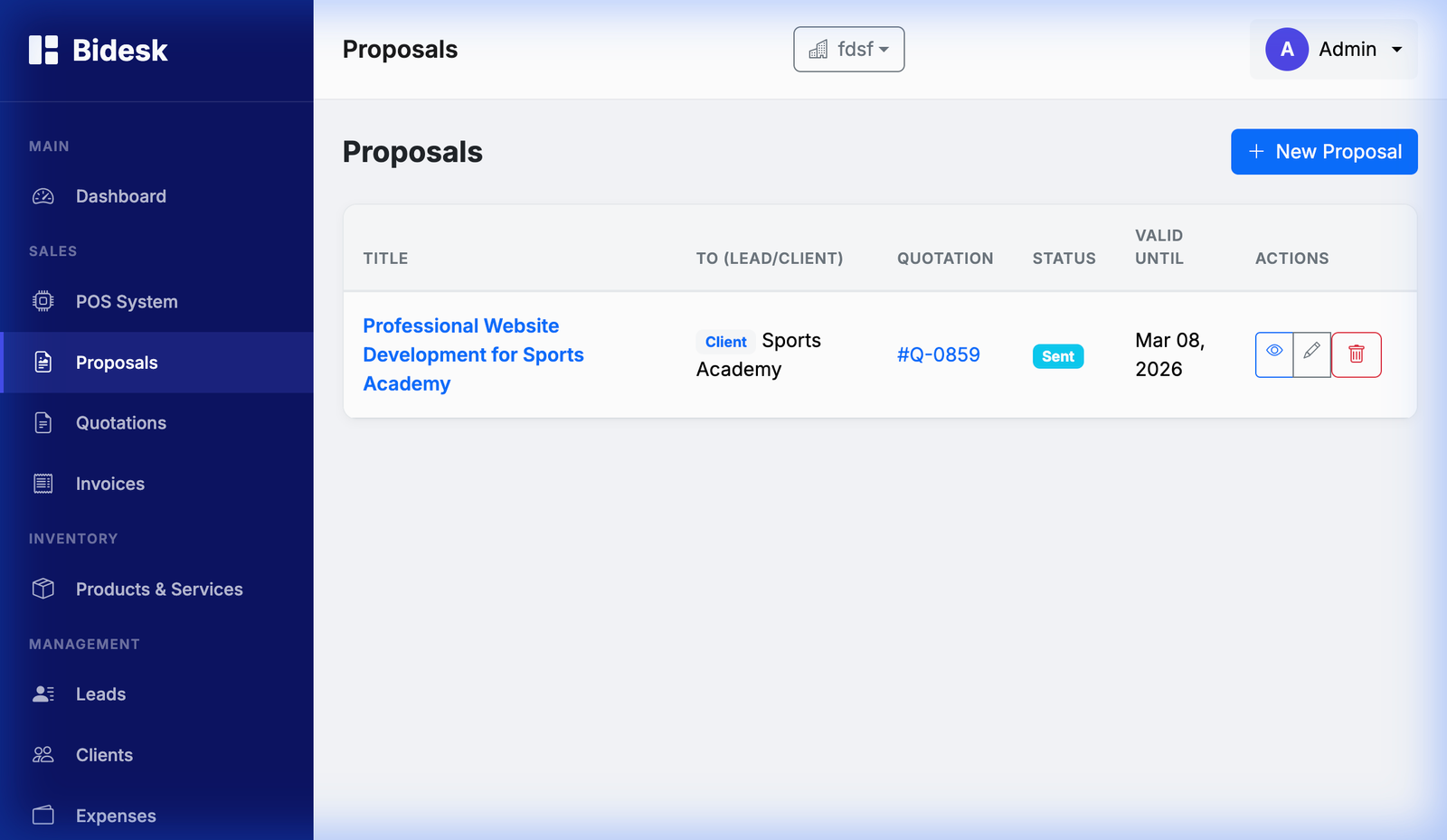
Professional Proposal Presentation
Once a proposal is created, the system generates a professional, branded document that can be shared with the client.

- Initial Draft: Create the proposal with project features and link it to a quotation if necessary.
- Review: Use the "Eye" icon to preview how the client will see the document.
- Client Delivery: Use the "Send to Client" button to notify the lead/client and finalize the document.
- Conversion: Once accepted, the proposal serves as the master scope of work for project execution.
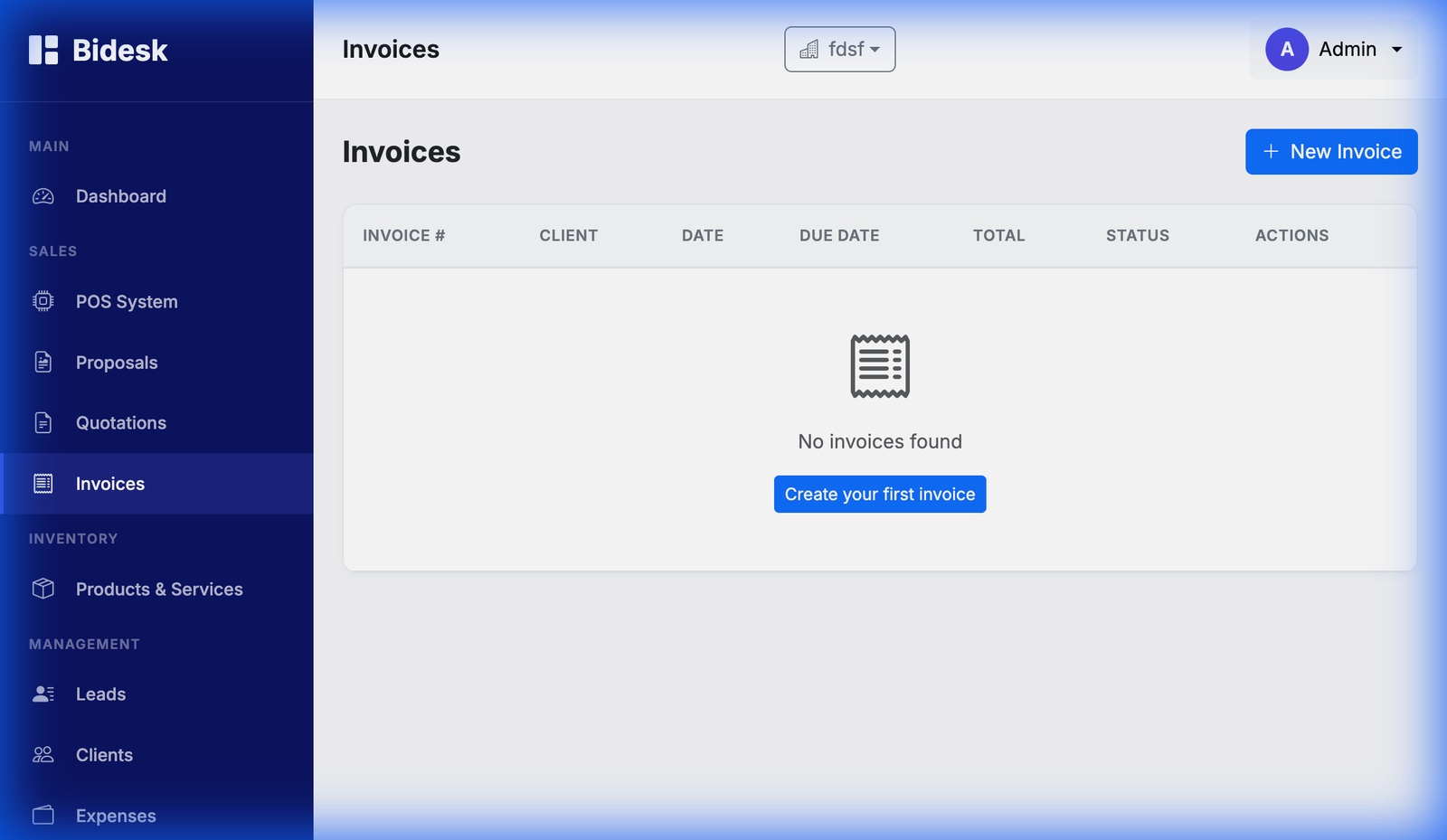
5. Financial Controls: Invoices
Transition from project completion to payment collection through the Invoice module.
6. Inventory & Services
Manage the catalog of what your business offers. This database feeds into the POS, Quotations, and Invoices modules.
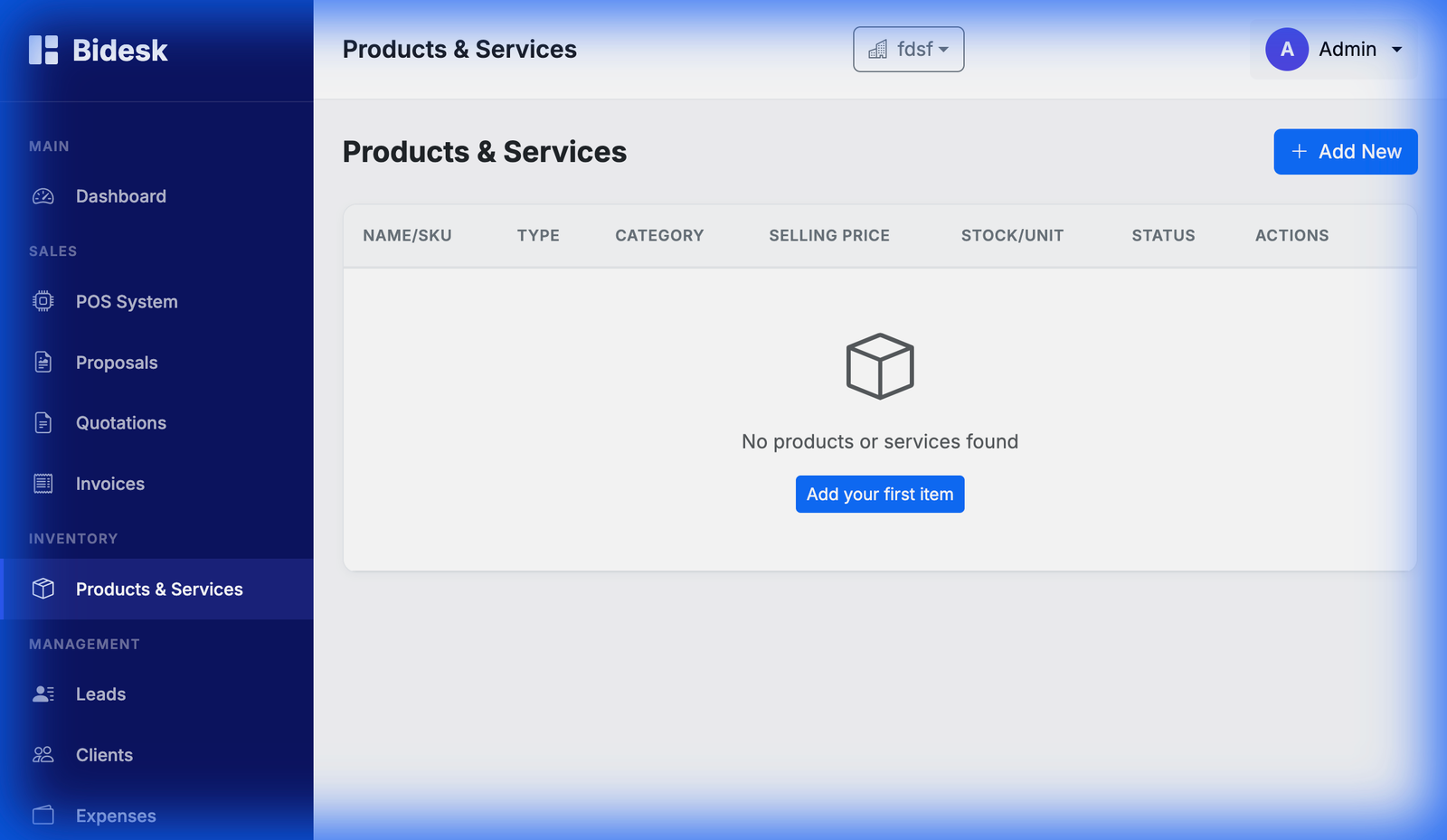
Management Actions: Add new items, update selling prices, and track stock levels to avoid operational delays.
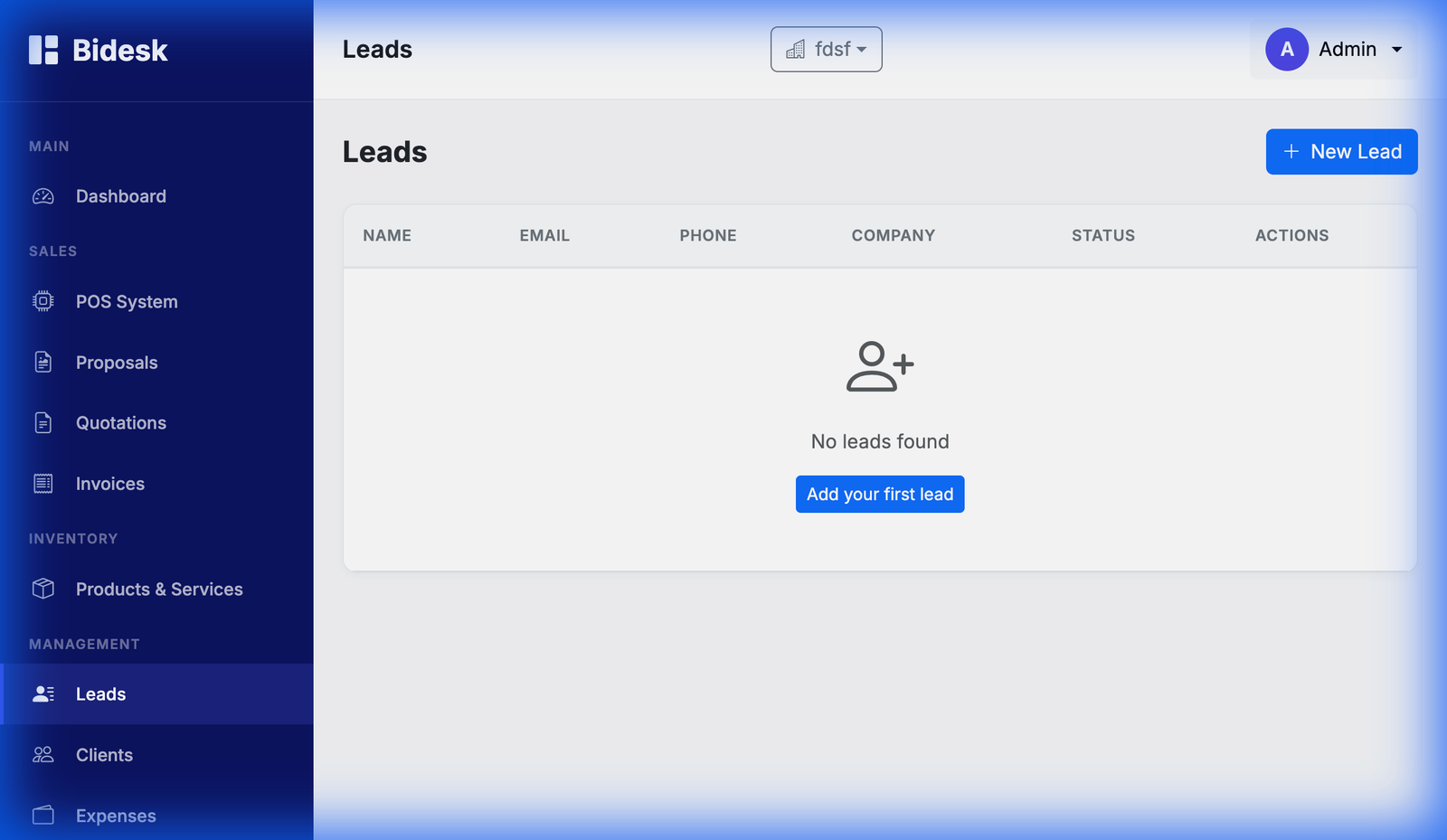
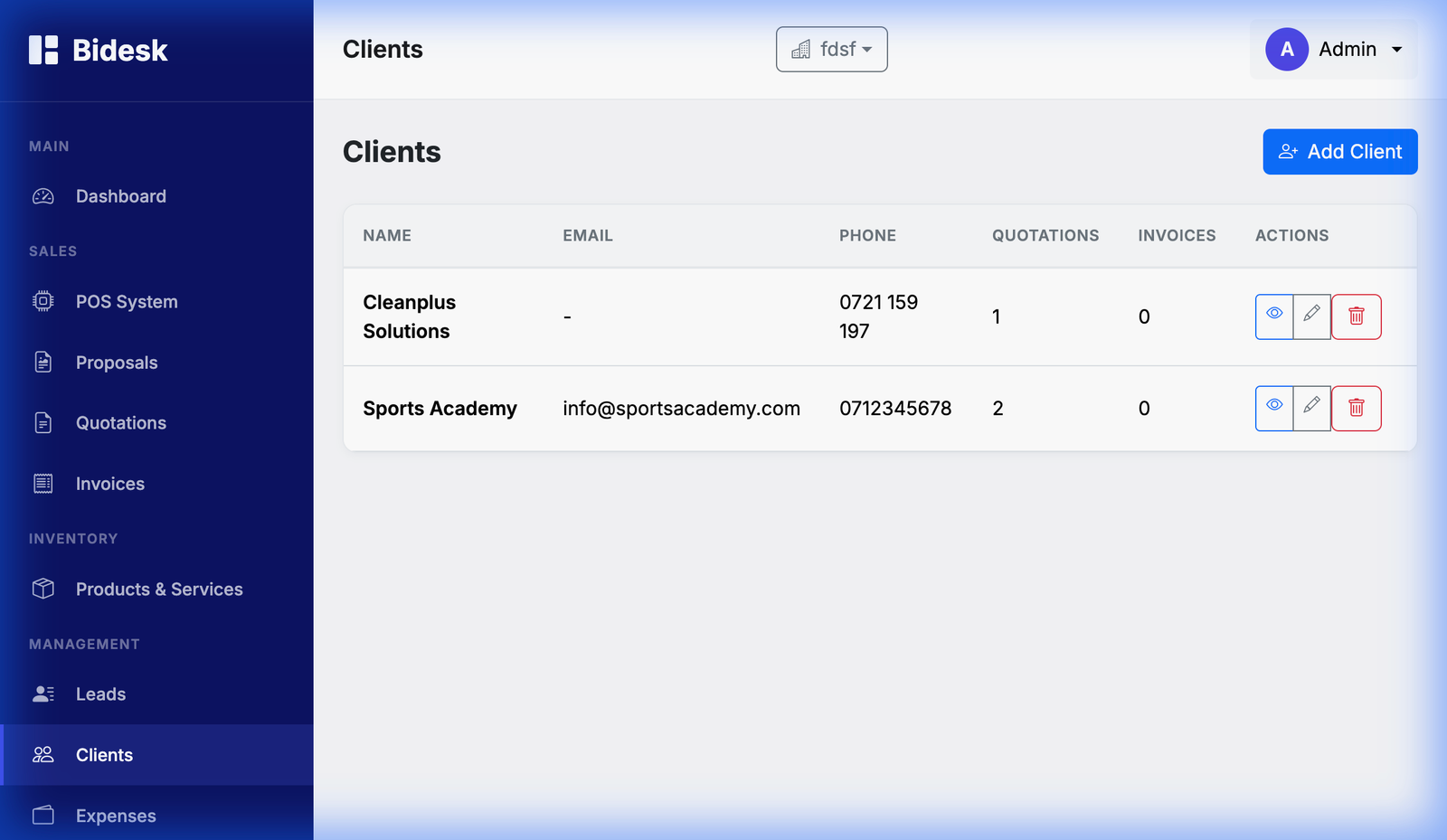
7. CRM: Leads & Clients
The lifecycle of a customer starts in Leads and moves to Clients upon successful engagement.
Client Database
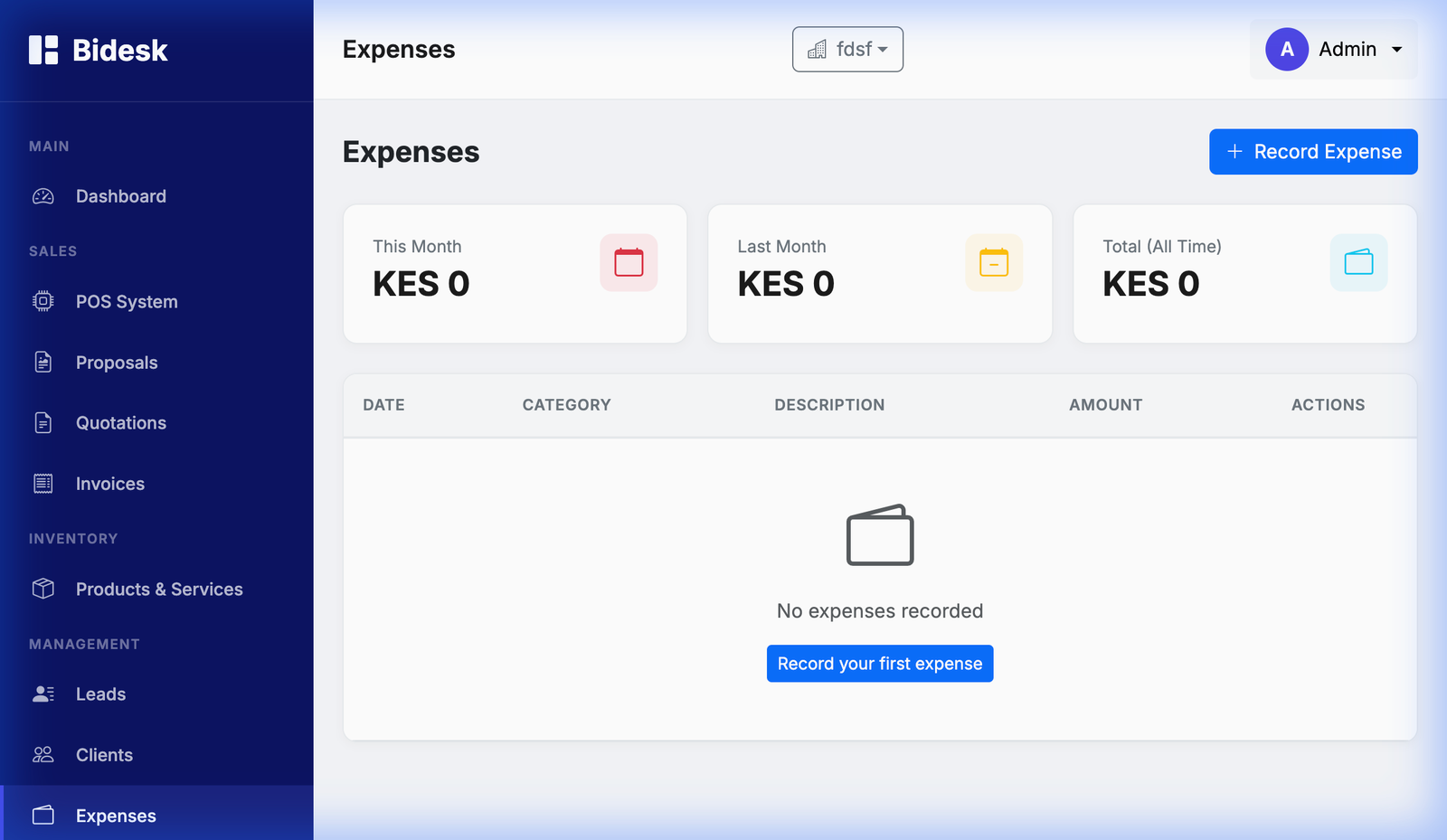
8. Operational Overheads: Expenses
Record and categorize all business costs to maintain an accurate profit and loss overview.
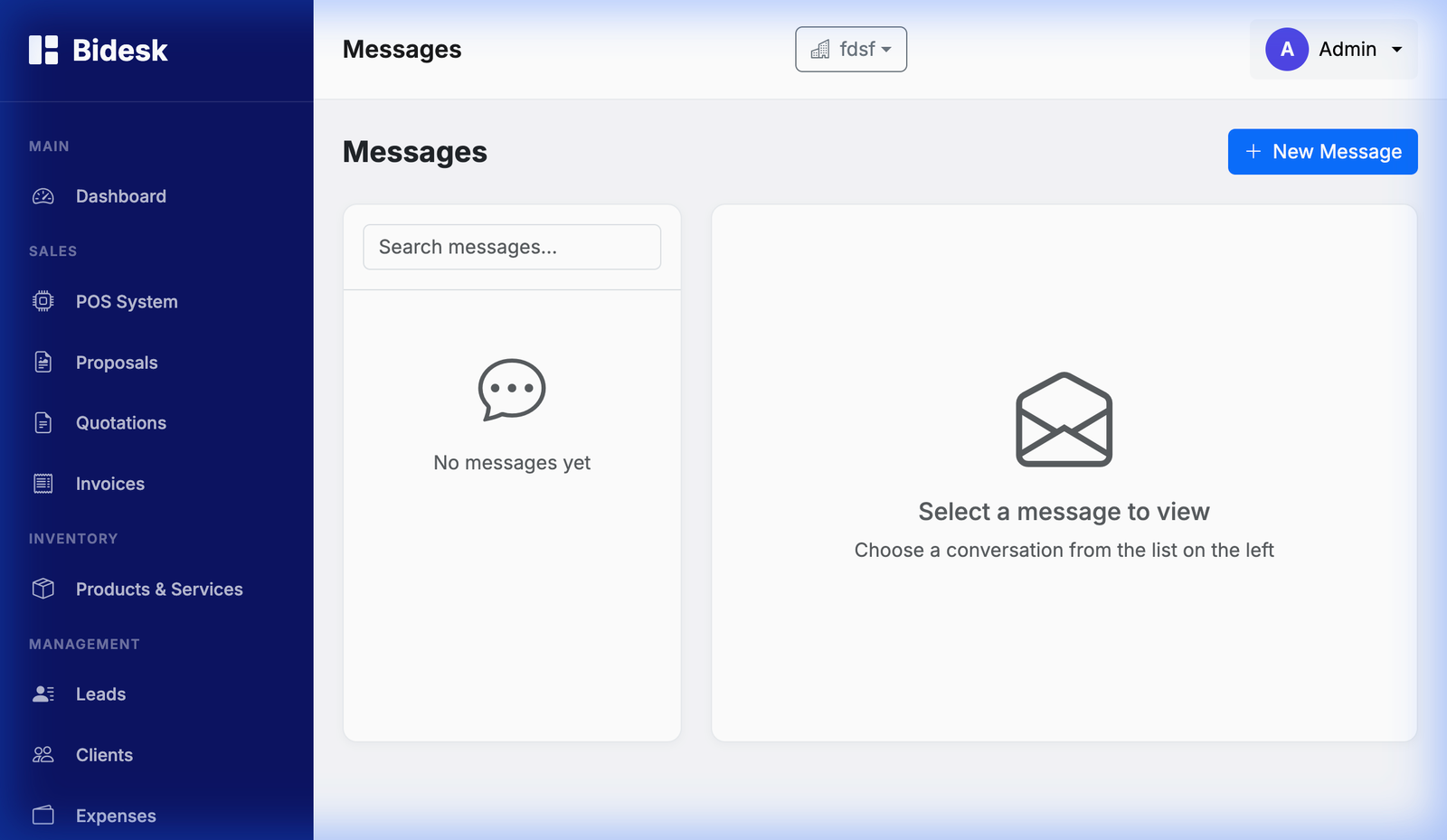
9. Internal Communication
The Messages module handles internal notes and client communications related to specific records.